User Guide

StoreClass (SC) is a desktop app for educators from private organizations e.g. tuition centers to manage their students. The educators will interact with the app through type while viewing the app through the window.
If you can type fast, StoreClass will become a perfect tools to manage student data.
- Quick start
-
Features
- Viewing help :
help - Adding a person:
add - Listing all persons :
list - Editing a person :
edit - Locating persons by name:
find - Filter persons :
filter - Deleting a person :
delete - Undoing the last action:
undo - Redoing the last undone action:
redo - Grading a Module:
grade - Archiving data files
archive - Load data files
load - Clearing all entries :
clear - Exiting the program :
exit - Autocomplete
- Saving the data
- Editing the data file
- Viewing help :
- FAQ
- Known issues
- Command summary
Quick start
- Ensure you have Java
17or above installed in your Computer. -
Download the latest
.jarfile from here. -
Copy the file to the folder you want to use as the home folder for your AddressBook.
- Use the terminal to run the jar file
- How to run a jar file using Terminal? See here
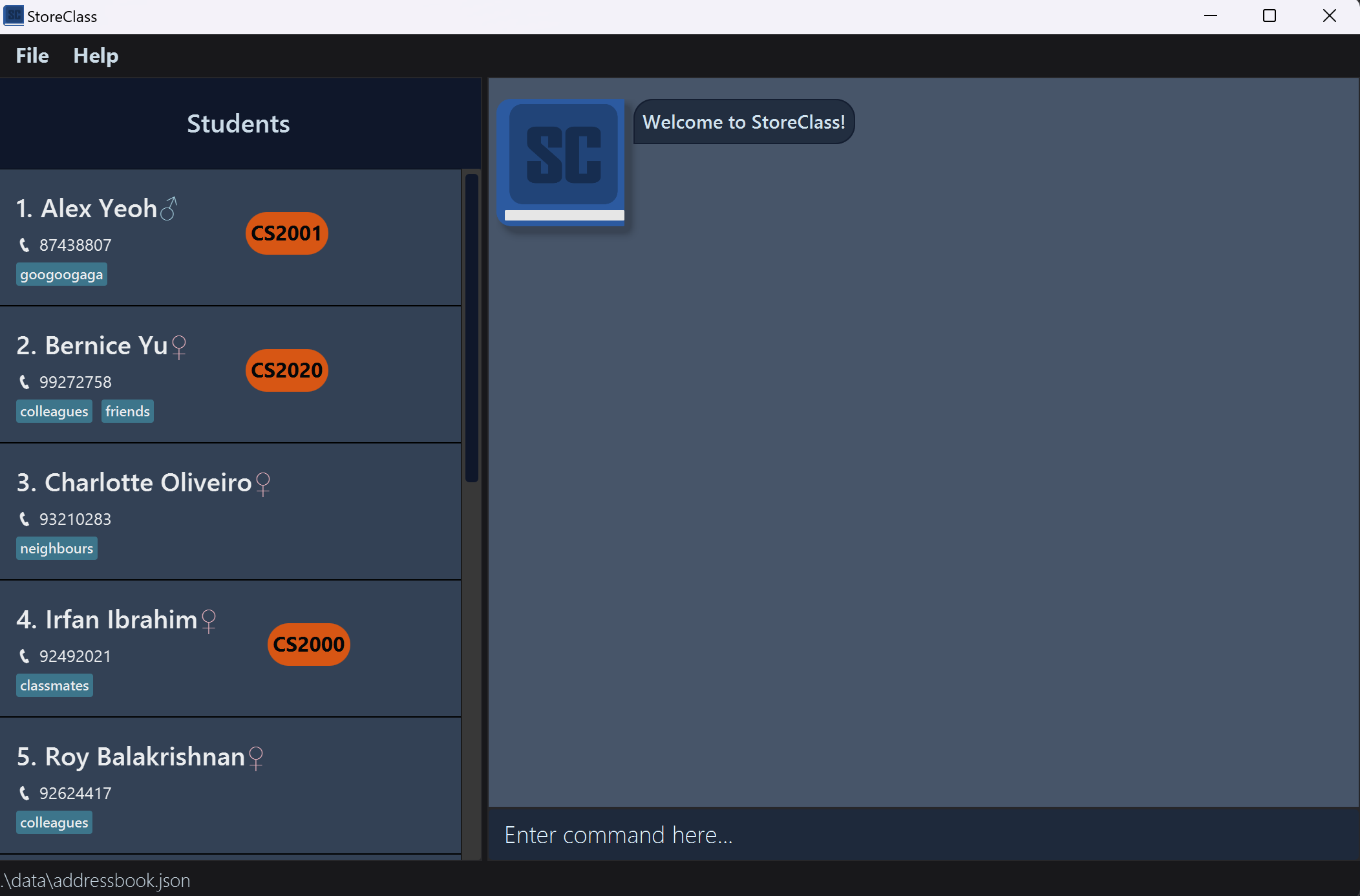
A GUI similar to the below should appear in a few seconds. Note how the app contains some sample data.
-
Type the command in the command box and press Enter to execute it. e.g. typing
helpand pressing Enter will open the help window.
Some example commands you can try:-
list: Lists all contacts. -
add n/John Doe p/98765432 g/male m/CS2103T: Adds a contact namedJohn Doeto the Address Book. -
delete 3: Deletes the 3rd contact shown in the current list. -
clear: Deletes all contacts. -
exit: Exits the app.
-
- Refer to the Features below for details of each command.
Features
 Notes about the command format:
-
Words in
UPPER_CASEare the parameters to be supplied by the user.
e.g. inadd n/NAME,NAMEis a parameter which can be used asadd n/John Doe. -
Items in square brackets are optional.
e.gn/NAME [t/TAG]can be used asn/John Doe t/friendor asn/John Doe. -
Items with
... after them can be used multiple times.
e.g.m/MODULE...can be used asm/CS2101,m/CS2101 m/CS2103Tetc. -
Items with
… after them can be used multiple times including zero times.
e.g.[t/TAG]…can be used ast/friend,t/friend t/familyetc. -
Parameters can be in any order.
e.g. if the command specifiesn/NAME p/PHONE_NUMBER,p/PHONE_NUMBER n/NAMEis also acceptable. -
Extraneous parameters for commands that do not take in parameters (such as
help,list,exitandclear) will be ignored.
e.g. if the command specifieshelp 123, it will be interpreted ashelp. -
If you are using a PDF version of this document, be careful when copying and pasting commands that span multiple lines as space characters surrounding line-breaks may be omitted when copied over to the application.
Viewing help : help
Shows a message explaning how to access the help page.

Format: help
Adding a person: add
Adds a person to the address book.
Format: add n/NAME p/PHONE_NUMBER g/GENDER m/MODULE... [t/TAG]…
 Tip:
A person can have any number of tags (including 0) and modules.
Tip:
A person can have any number of tags (including 0) and modules.
Examples:
add n/John Doe p/98765432 g/male m/CS2103Tadd n/Betsy Crowe t/friend g/female p/1234567 m/MA1522 m/CS2103T t/criminal
Listing all persons : list
Shows a list of all persons in the address book.
Format: list
Editing a person : edit
Edits an existing person in the address book.
Format: edit INDEX [n/NAME] [p/PHONE] [g/GENDER] [m/MODULE] [t/TAG]…
- Edits the person at the specified
INDEX. The index refers to the index number shown in the displayed person list. The index must be a positive integer 1, 2, 3, … - At least one of the optional fields must be provided.
- Existing values will be updated to the input values.
- When editing tags, the existing tags of the person will be removed i.e adding of tags is not cumulative.
- You can remove all the person’s tags by typing
t/without specifying any tags after it.
Examples:
-
edit 1 p/91234567Edits the phone number of the 1st person to be91234567. -
edit 2 n/Betsy Crower t/Edits the name of the 2nd person to beBetsy Crowerand clears all existing tags.
Locating persons by name: find
Finds persons whose names or tags contain any of the given keywords.
Format: find KEYWORD [MORE_KEYWORDS]
- The search is case-insensitive. e.g
hanswill matchHans - The order of the keywords does not matter. e.g.
Hans Bowill matchBo Hans - Only the name and tags are searched.
- Only full words will be matched e.g.
Hanwill not matchHans - Persons matching at least one keyword will be returned (i.e.
ORsearch). e.g.Hans Bowill returnHans Gruber,Bo Yang
Examples:
-
find JohnreturnsjohnandJohn Doe(search by name) -
find colleaguereturnsBernice YuandRoy Balakrishnan(search by tag) -
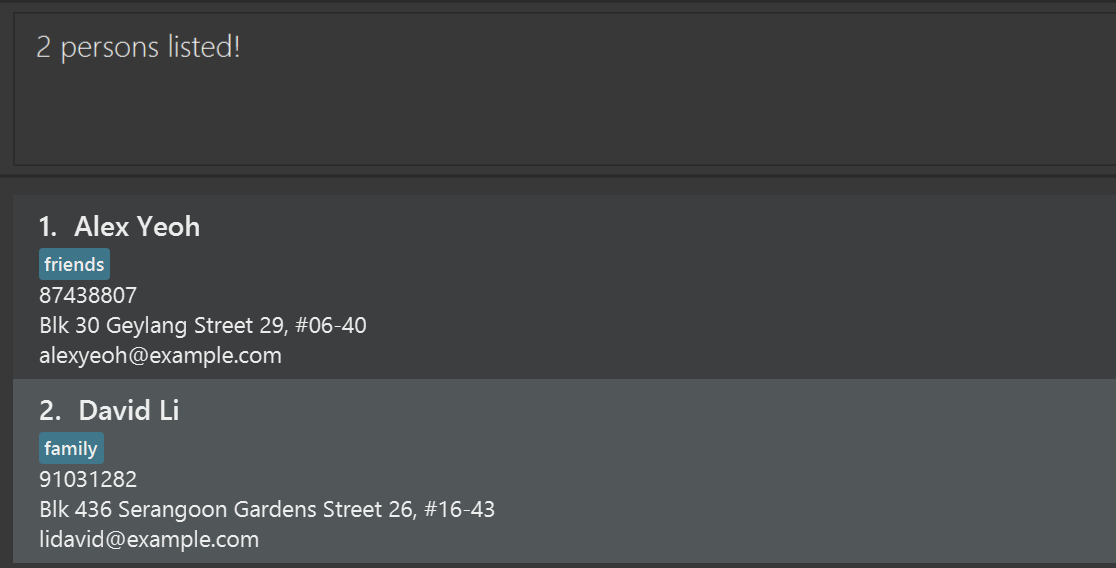
find alex davidreturnsAlex Yeoh,David Li(search by multiple parameters)
Filter persons : filter
Filters persons who meet all specified conditions.
Format: filter [n/name] [p/phone] [g/gender] [t/tag]... [m/module]...
- The filter is case-insensitive. eg
hanswill matchHans. - At least one of the optional fields must be provided.
- Only full words will be matched e.g.
Hanwill not matchHans, same to all parameter except phone number. - At least 3 digits of number must be provided to filter phone number and it will return all matching numbers that contains specified number.
- Persons matching all the given conditions will be returned (i.e.
ANDsearch).
Examples:
-
filter n/JohnreturnsjohnandJohn Doe(filter by name) -
filter g/male t/projectreturnsBernice Yu,Roy BalakrishnanandGabreil Lim. (filter by gender and tag) -
filter g/female t/family t/friendreturnsAlex YeohandDavid Li(filter by gender and multiple tags) -
filter g/male t/project m/cs1101returnBernice Yu(filter by multiple conditions)
Deleting a person : delete
Deletes the specified person from the address book.
Format: delete INDEX
- Deletes the person at the specified
INDEX. - The index refers to the index number shown in the displayed person list.
- The index must be a positive integer 1, 2, 3, …
Examples:
-
listfollowed bydelete 2deletes the 2nd person in the address book. -
find Betsyfollowed bydelete 1deletes the 1st person in the results of thefindcommand.
Undoing the last action: undo
Reverts the last action performed in the application, allowing you to recover data that may have been deleted or modified unintentionally.
Format: undo
-
Note: This command does not work with the
list,filter, orfindcommands.
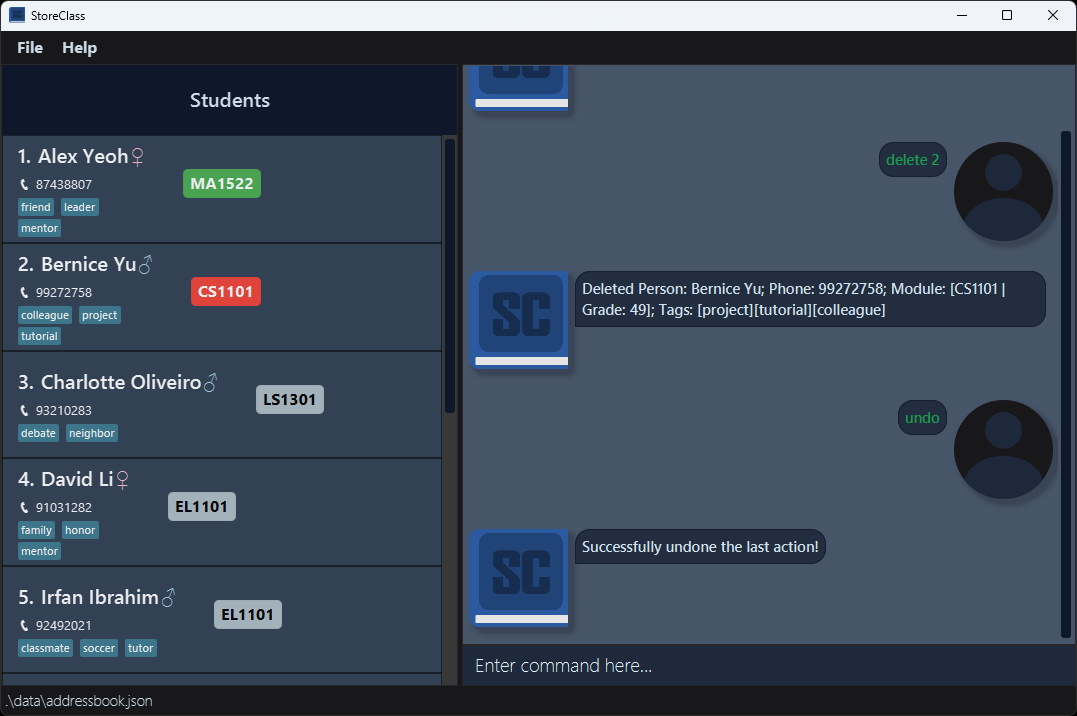
Examples:
-
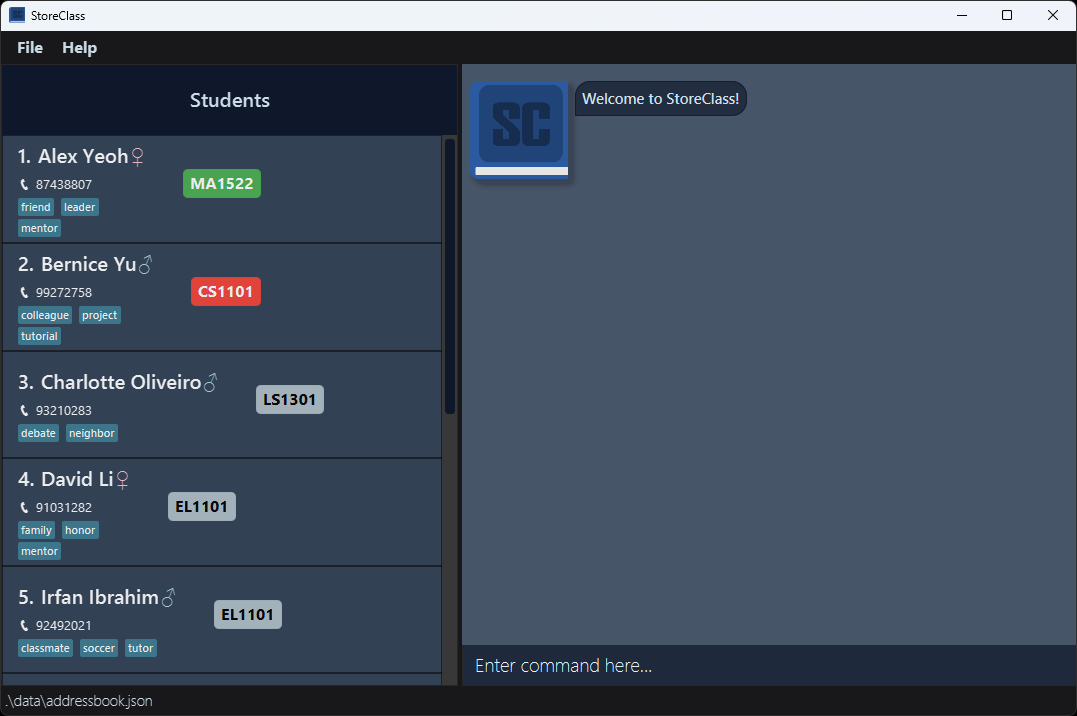
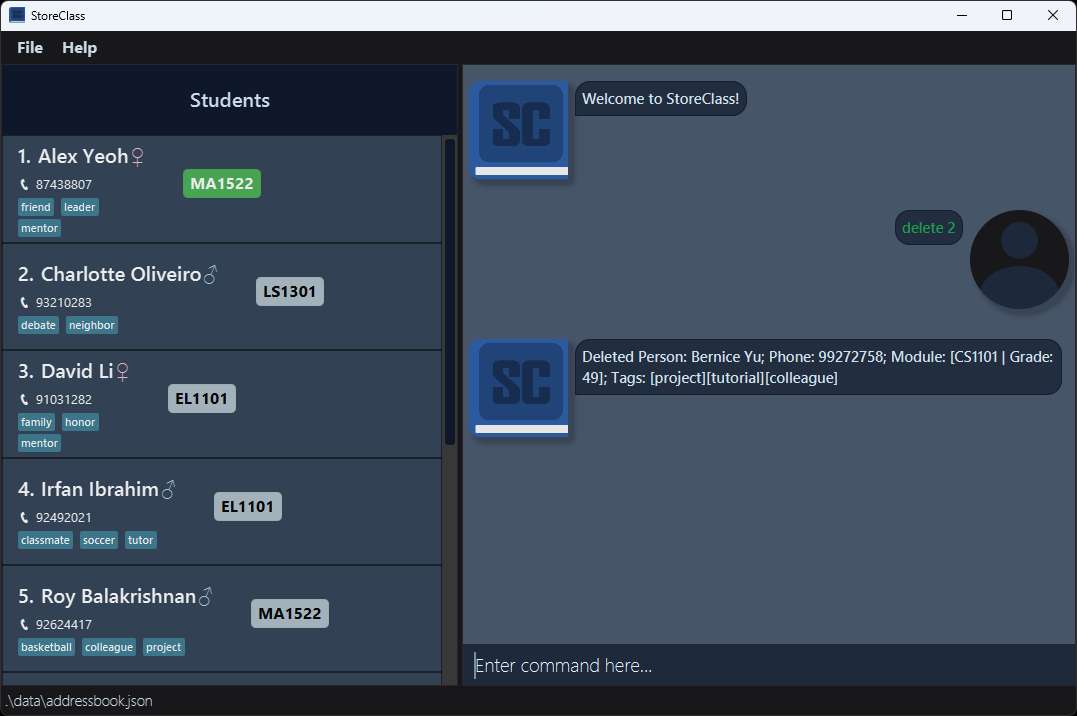
undowill revert the last command executed, restoring the previous state of the address book.
Redoing the last undone action: redo
Restores the last action that was undone, allowing you to recover data after an undo operation.
Format: redo
-
Note: This command does not work with the
list,filter, orfindcommands.
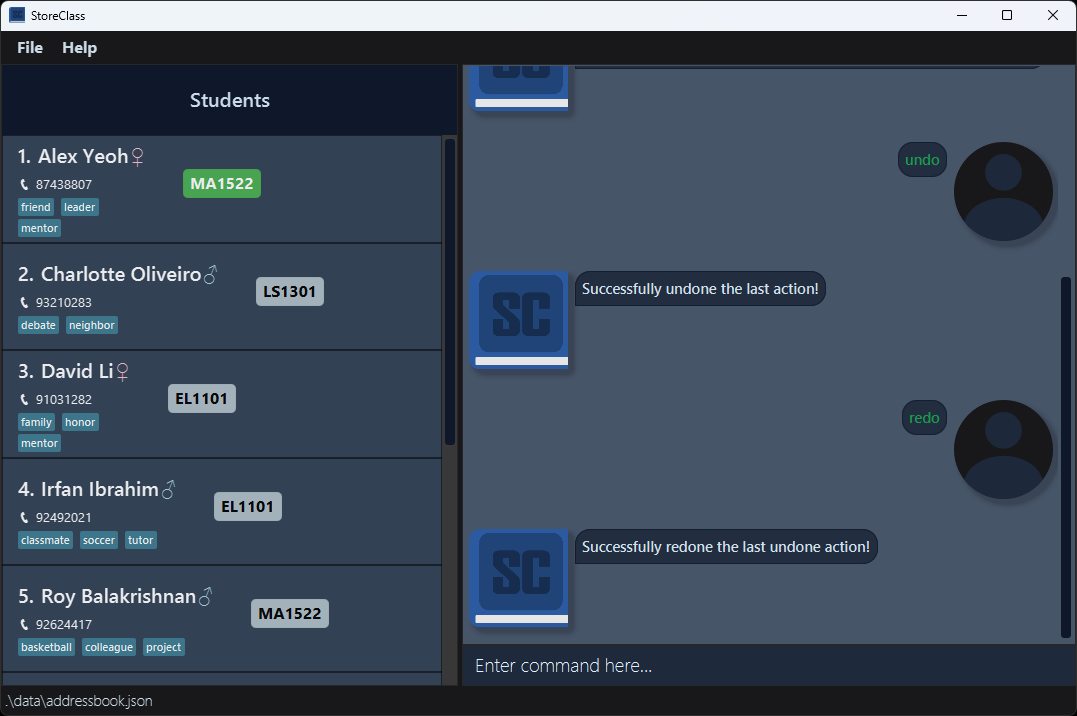
Examples:
-
redowill reapply the last command that was undone, restoring the previous state of the address book.
Grading a Module: grade
Assigns a grade to a module that a student is taking.
Format: grade INDEX [m/MODULE s/GRADE]
- Assigns a numerical grade (between 0 and 100) to the module identified by the
INDEXnumber shown in the displayed person list. -
INDEX: The index number of the student in the displayed person list (must be a positive integer). -
m/MODULE: The module code to which the grade is assigned. -
s/GRADE: The numerical grade (between 0 and 100) to assign to the module. - You can provide multiple
m/MODULE s/GRADEpairs to assign grades to multiple modules in a singlegradecommand. - The grade can be any whole number between 0 and 100, inclusive.
Important Notes:
- Each module specified in the
gradecommand must be a module that the student is taking. - The number of
m/MODULEprefixes must match the number ofs/GRADEprefixes. - Grades are assigned to modules based on the order of the
m/MODULE s/GRADEpairs provided in the command.
Examples:
-
grade 1 m/CS2103T s/85assigns a grade of 85 to CS2103T for the first student. -
grade 2 m/MA1522 s/90assigns a grade of 90 to MA1522 for the second student. -
grade 3 m/CS2103T s/80 m/MA1522 s/85assigns a grade of 80 to CS2103T and 85 to MA1522 for the third student.
Archiving data files archive
Archive the current address book to the specific file name.
The archived file and be found at archived/FILENAME.
Format: archive pa/PATH
Example: archive pa/mybook.json
The file name must ends with “.json” and must not contain any slash “/”.
There should be only one file name provided.
 Warning:
All entries in the current address book will be discarded.
Archiving into an existing address book will overwrite the old address book.
Warning:
All entries in the current address book will be discarded.
Archiving into an existing address book will overwrite the old address book.
Load data files load
Load the current address book to the specific file name.
This command will only load from a folder named archived which is in the same folder as the jar file.
The archived file and be found at load/FILENAME.
Format: load pa/PATH
Example: load pa/mybook.json
The file name must ends with “.json”, must not contain any slash “/” and must point to an existing address book .json file.
There should be only one file name provided.
Warning:
Avoid loading non-address book .json files as it may result in unexpected behaviours
All the entries in the current address book will be discard. So archiving current address book before loading is recommended.
Clearing all entries : clear
Clears all entries from the address book.
Format: clear
Exiting the program : exit
Exits the program.
Format: exit
Autocomplete
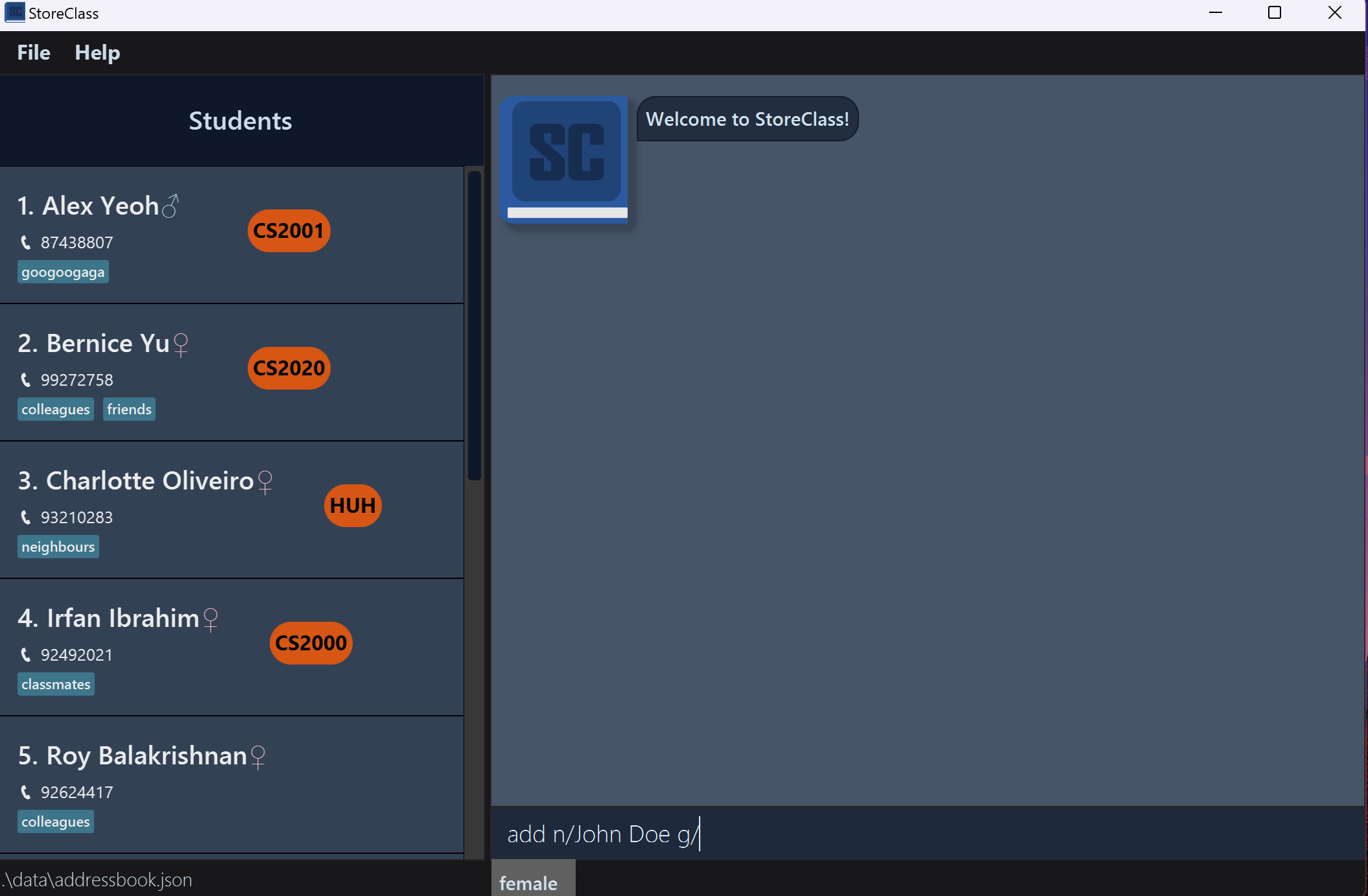
The Autocomplete feature provides real-time command suggestions as you type, helping you quickly and accurately enter commands. Autocomplete identifies keywords and suggests matches, allowing you to streamline input by selecting from relevant options instead of typing full commands or field values.
How It Works
Autocomplete operates based on the word at the caret position:
- As you begin typing a command or field, suggestions will appear that match your input. For example, typing
adwill display a list of commands beginning withad, likeadd. - Autocomplete for command keywords applies only to the first word you type in the command box. This initial word is treated as the command.
- Autocomplete for student fields applies to all subsequent words after the first word. All subsequent words after the first are treated as student fields with specific prefixes.
 Note: Autocomplete will not match subsequent words after the first word with command keywords!
 Supported Fields
Autocomplete currently supports the following fields with these prefixes:
| Prefix | Field | Description |
|---|---|---|
m/ |
Modules | Matches all existing module names |
t/ |
Tags | Matches all existing tags |
g/ |
Gender | Matches gender values: male or female
|
pa/ |
File Paths | Matches all existing archived file paths |
When these prefixes are detected, autocomplete automatically displays a list of suggestions related to these fields. The list of suggestions are generated through the existing list of students inside StoreClass.
Example Usage
If you begin typing edit 1 m/M, Autocomplete will provide suggestions for available modules starting with the letter M, helping you to quickly select the correct module name. Similarly, typing t/ after the command will bring up a list of tags, allowing you to specify tags accurately without needing to remember or retype exact names.
 Common Question:
Why are there no suggestions when I type in
Common Question:
Why are there no suggestions when I type in m/, t/ or pa/? Autocomplete searches for suggestions relevant to these fields based on the existing data in StoreClass. If there are no data or students inside StoreClass, then no suggestions will be generated for these fields. This usually occurs after a
clear command.
Tips: for Efficient Usage
-
Start with the command: Autocomplete only activates for commands when typing the first word.
-
Remember to use prefixes: For fields, make sure to use the correct prefix (
m/,t/,g/,pa/) to activate Autocomplete for those fields.
-
Select from suggestions using arrow keys: Save time by selecting from the suggestion list using arrow keys rather than typing full names or values.
- Typos: When you accidentally type in the wrong name for an existing field, instead of holding backspace and retyping the entire field, simply move the caret position over to the prefix, and select from the list of suggestions. Autocomplete will replace the entire field with your selection for you.
By utilizing Autocomplete, you can input commands more quickly, reduce typos, and improve your overall efficiency in navigating the software!
Saving the data
AddressBook data are saved in the hard disk automatically after any command that changes the data. There is no need to save manually.
Editing the data file
AddressBook data are saved automatically as a JSON file [JAR file location]/data/addressbook.json. Advanced users are welcome to update data directly by editing that data file.
 Caution:
If your changes to the data file makes its format invalid, AddressBook will discard all data and start with an empty data file at the next run. Hence, it is recommended to take a backup of the file before editing it.
Caution:
If your changes to the data file makes its format invalid, AddressBook will discard all data and start with an empty data file at the next run. Hence, it is recommended to take a backup of the file before editing it.Furthermore, certain edits can cause the AddressBook to behave in unexpected ways (e.g., if a value entered is outside of the acceptable range). Therefore, edit the data file only if you are confident that you can update it correctly.
FAQ
Q: How do I transfer my data to another Computer?
A: Install the app in the other computer and overwrite the empty data file it creates with the file that contains the data of your previous AddressBook home folder.
Known issues
-
When using multiple screens, if you move the application to a secondary screen, and later switch to using only the primary screen, the GUI will open off-screen. The remedy is to delete the
preferences.jsonfile created by the application before running the application again. -
If you minimize the Help Window and then run the
helpcommand (or use theHelpmenu, or the keyboard shortcutF1) again, the original Help Window will remain minimized, and no new Help Window will appear. The remedy is to manually restore the minimized Help Window.
Command summary
| Action | Format, Examples |
|---|---|
| Add |
add n/NAME g/GENDER p/PHONE_NUMBER m/MODULE... [t/TAG]… e.g., add n/James Ho g/male p/22224444 m/CS2103T m/CS2101 t/friend t/colleague
|
| Clear | clear |
| Delete |
delete INDEXe.g., delete 3
|
| Edit |
edit INDEX [n/NAME] [g/GENDER] [p/PHONE_NUMBER] [m/MODULE] [t/TAG]…e.g., edit 2 n/James Lee
|
| Find |
find KEYWORD [MORE_KEYWORDS]e.g., find James Jake
|
| Grade |
grade INDEX [m/MODULE s/GRADE]e.g., grade 1 m/CS2103T s/85
|
| Undo | undo |
| Redo | redo |
| List | list |
| Help | help |
| Archive | archive pa/PATH |
| Load | load pa/PATH |